How to Reset Your Password
Forgot your password? Follow these easy steps to get back into your ESCA account safely. You’ll need your email address and — if MFA is enabled — your phone with the Microsoft Authenticator app.
1
Go to Login & Start Reset
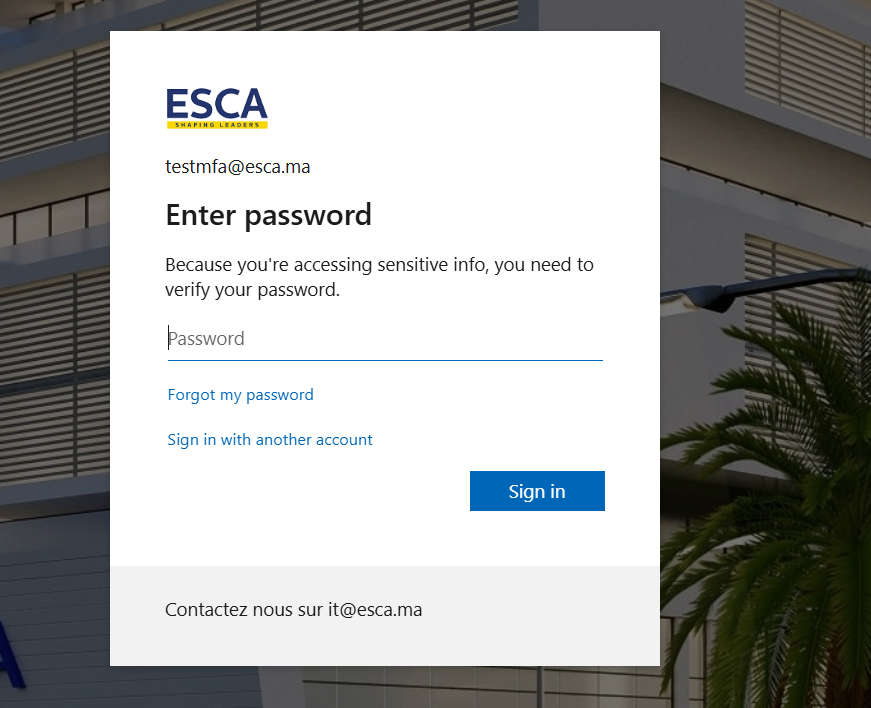
Open the ESCA login page and click the forgot password link.
- Go to the ESCA login website in your browser
- Enter your email if prompted
- Click "Forgot my password"
2
Enter Email & Solve CAPTCHA
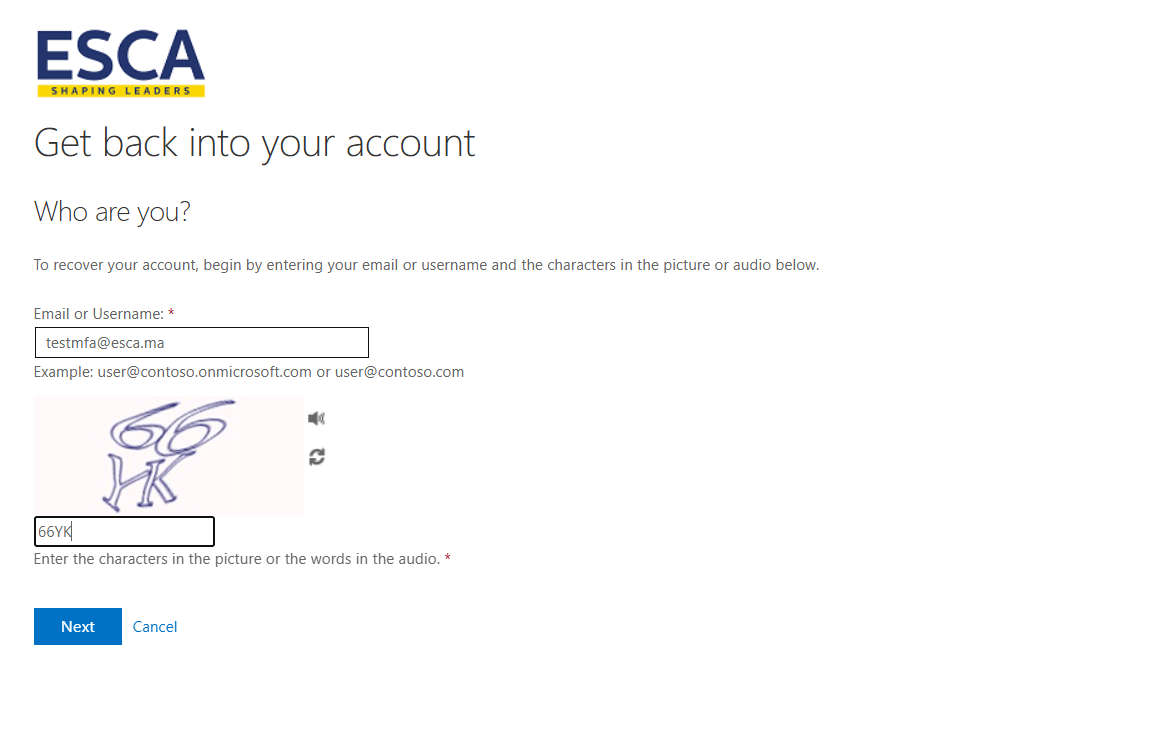
Prove it’s you by entering your email and the characters shown.
- Type your ESCA email (e.g. [email protected])
- Read the image with letters and numbers
- Type them exactly (case sensitive)
- Click Next
3
Verify with Authenticator App
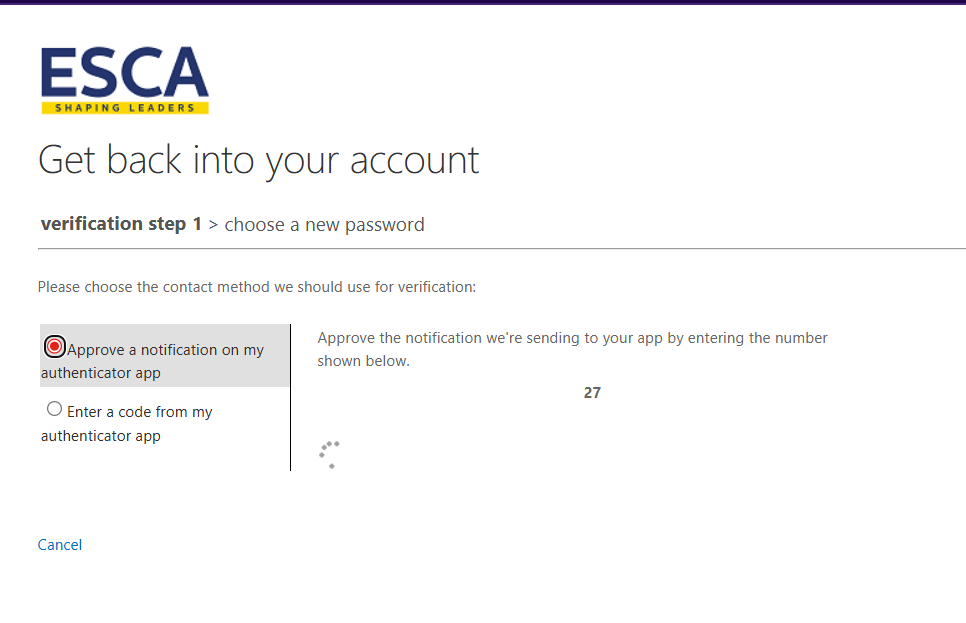
Use your phone to approve or enter a code from the app.
- Choose Approve a notification (easiest) or Enter a code
- Open Microsoft Authenticator on your phone
- Approve the push notification — or type the 6-digit code
- If a number appears on screen (like 27), enter it
4
Create New Password
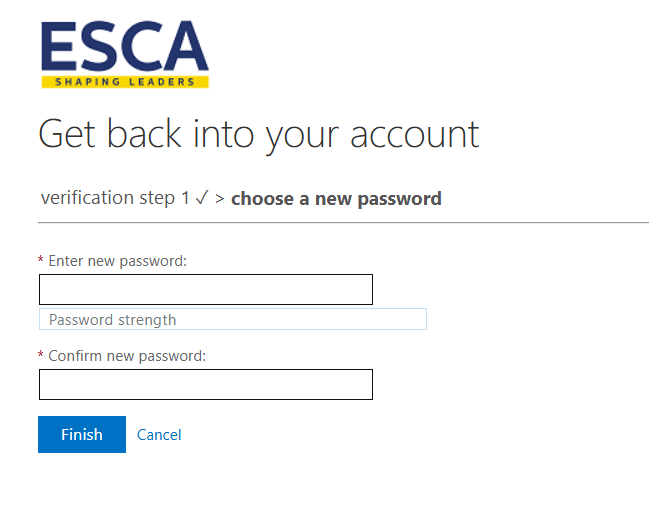
Choose and confirm a strong new password.
- Type your new password in the first field
- Type it again in the confirm field
- Use at least 8 characters, mix uppercase, lowercase, numbers & symbols
- Click Finish
5
Done! Sign In Again
Your password is reset – log in with the new one.
- See the green success message
- Click "click here" to go to sign in
- Enter your email + new password
- Approve MFA again if asked
Need Help?
Contact IT support if anything goes wrong.
Email: [email protected]
Office Hours: Monday – Friday, 8:30–12:30 & 2:30–6:30